1. Connect BAT BMS to the correct battery
Install BAT BMS from Google Play or the App Store, enable Bluetooth, and stand close to the powered battery pack. Recent Android versions may request Nearby devices permission; older Android versions may connect Bluetooth scanning to location permission. On iPhone, allow Bluetooth access when prompted. The app cannot display meaningful data until compatible BMS hardware is awake and advertising a Bluetooth signal.
Open the device list, wait for scanning to finish, and choose the identifier that belongs to your pack. When several batteries are nearby, switch off or move away from the others if the names are unclear. After connecting, confirm that total voltage roughly matches a separate meter or the battery’s expected state. A plausible device name alone is not enough evidence that you selected the right pack.
Many Bluetooth BMS modules accept one active phone connection at a time. If BAT BMS stays on Not Connected, close other battery apps, disconnect the previous phone, wait several seconds, and scan again. Do not repeatedly toggle protection switches while the connection is unstable.
2. Read the RT dashboard without guessing
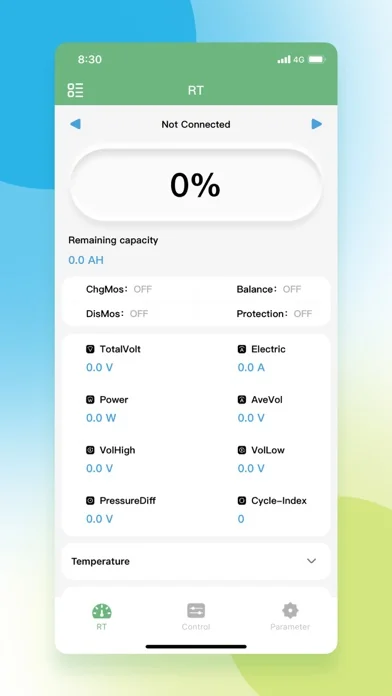
RT is the real-time monitoring screen. The exact labels vary by firmware, but the main job is consistent: show BMS measurements and operating states. Read several values together. A normal total voltage does not prove that every cell is healthy, and a 0 A current can mean the pack is idle rather than disconnected.
Watch trends instead of reacting to one refresh. Compare the highest and lowest cell voltage, temperature sensors, current direction, remaining capacity and protection indicators. If one value is impossible, refresh the connection and verify it with an independent meter before assuming the battery itself has failed.
| RT label | What it usually means | How to use it |
|---|---|---|
| Remaining capacity | Estimated amp-hours or charge state | Treat it as an estimate affected by capacity settings and calibration |
| TotalVolt | Pack voltage reported by the BMS | Compare it with expected voltage and a meter when accuracy matters |
| Electric | Charge or discharge current | Check the sign and whether a charger or load is active |
3. Understand Charge, Discharge and AutoBalance controls
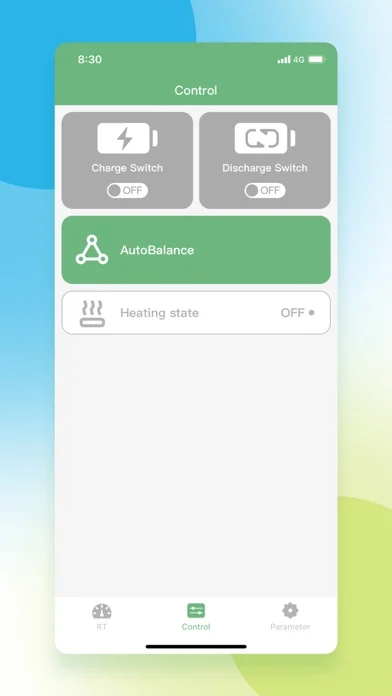
The Control screen can expose Charge Switch, Discharge Switch, AutoBalance and heating state. These are not decorative app toggles. Depending on the BMS firmware, changing them may enable or disable real power paths or balancing behavior. A disabled charge switch can prevent charging; a disabled discharge switch can remove output to a load. Never experiment while a vehicle, inverter, charger or other critical load is operating.
Before changing a switch, confirm why it is OFF. The BMS may have turned it off because of over-voltage, under-voltage, over-current, temperature or another protection. Turning it back on without correcting the cause can repeat the fault. AutoBalance depends on BMS design, thresholds and cell conditions; it is not a universal repair button for a damaged pack.
4. Use the Parameter menu as a reference first
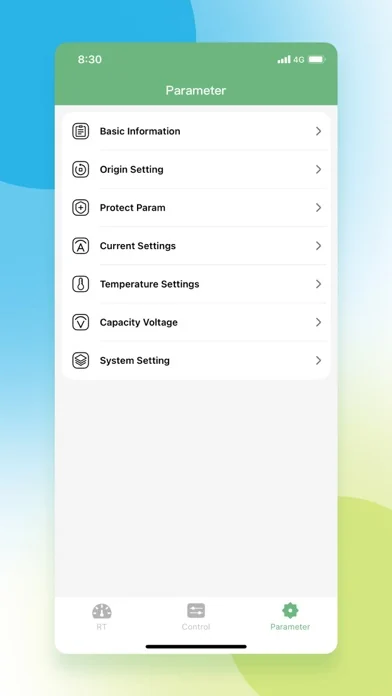
The Parameter screen can contain Basic Information, Origin Setting, Protect Param, Current Settings, Temperature Settings, Capacity Voltage and System Setting. Names may differ across firmware. Open these pages first to document what the BMS reports, not to copy values from a forum, another battery or a generic screenshot.
Protection thresholds depend on chemistry, series count, cell specification, current capability, sensor placement and the battery manufacturer’s design. A value that is reasonable for one LiFePO4 pack can be unsafe for another pack or chemistry. If the app asks for a password or confirmation, treat the change as intended for an installer, manufacturer or informed owner.
5. Fix common BAT BMS connection and reading problems
For a connection problem, work from simple causes to risky ones. Confirm battery power, phone Bluetooth, app permission and distance. Close other BMS apps and remove competing phone connections. Restart the app, then Bluetooth, before power-cycling battery hardware. If the device appears but fails to connect, wait for the previous session to time out and try from one phone only.
For unusual readings, separate app problems from battery problems. A stale screen may recover after reconnecting. A value that conflicts with a meter may point to calibration, wiring, sensor or firmware differences. Repeated over-temperature, cell-voltage or protection events require hardware investigation; reinstalling the app does not repair the pack.
6. Follow a safe everyday BAT BMS workflow
A practical session starts with observation. Connect, confirm identity, review total voltage, cell spread, current, temperature and protections, then take a screenshot if you are tracking a change. Only open Control or Parameter pages when the monitoring data gives you a specific reason and you have the correct hardware documentation.
BAT BMS is useful for visibility, but it is not a substitute for a multimeter, insulation checks, load testing, battery service procedures or professional diagnosis. Stop using or charging a pack that is swollen, damaged, unusually hot, leaking, smelling abnormal or repeatedly entering protection. Software access should never bypass a physical safety warning.
Keep screenshots with dates when you are investigating an intermittent fault. A record of connection status, total voltage, cell spread, current, temperature and active protection can help a battery supplier understand what changed between sessions. Remove private device identifiers before sharing images publicly, and never post passwords, serial numbers or security information that could expose the hardware to unauthorized access.
BAT BMS app manual FAQ
Why does BAT BMS show Not Connected?
Check that the battery is awake, Bluetooth and app permissions are enabled, the phone is close enough, and another phone or BMS app is not holding the connection. Reconnect from one phone before changing any control.
What does Disable Charge Switch mean in BAT BMS?
It usually means the charge power path is not enabled, but the cause can be a user command, firmware state or active protection. Check cell voltage, temperature and protection messages before attempting to enable it.
Can I change BAT BMS protection parameters?
Only when you have specifications for the exact battery, chemistry, series count and BMS model. Save the original values first and avoid copying settings from unrelated packs.
Why is BAT BMS current or capacity inaccurate?
Current sensing and capacity estimates can depend on calibration, wiring, firmware and configured battery capacity. Compare critical readings with an independent meter and follow the hardware maker’s procedure.
How do I use the BAT BMS app after installing it?
Install it from the official store, enable Bluetooth permissions, wake the correct BMS, connect one phone, and open RT before changing any control. Confirm voltage, current, temperature, cell spread, and protection state against the hardware documentation.
What is the current BAT BMS app version?
At a September 15, 2026 check, the official Apple listing still showed version 1.1.5, released August 3, 2026. Google Play showed an update on July 11, 2026 but did not expose a version number in the retrieved page text. Use the official store listings for current availability instead of an unverified APK mirror.
Official sources and interface references
- Google Play BAT BMS listing - Official Android listing for package com.bms.grenergy and current store availability.
- Apple App Store BAT-BMS listing - Official iOS listing and screenshot source; Apple’s Lookup API showed version 1.1.5, 9.1 MB, iOS 12.0+, released August 3, 2026 when checked August 12, 2026.